 SingFun
How to Slow Down, Loop and Trim Any Sound on Your Phone
To slow down a sound on your phone without making it sound deeper, use an app that has an independent speed control. In SingFun, trim the part you want with the two handles, turn on Loop, and set the speed to 0.5× or 0.75× in the effects panel. The pitch stays the same while the sound repeats at a pace you can follow.
Three tools that work together
- Trim selects exactly the section you care about.
- Loop repeats that section until you stop it.
- Speed changes how fast it plays, from 0.5× up to 4×, without changing the pitch.
Used together, they turn a recording into a practice tool.
How to trim a recording
- Record or import a sound into a slot.
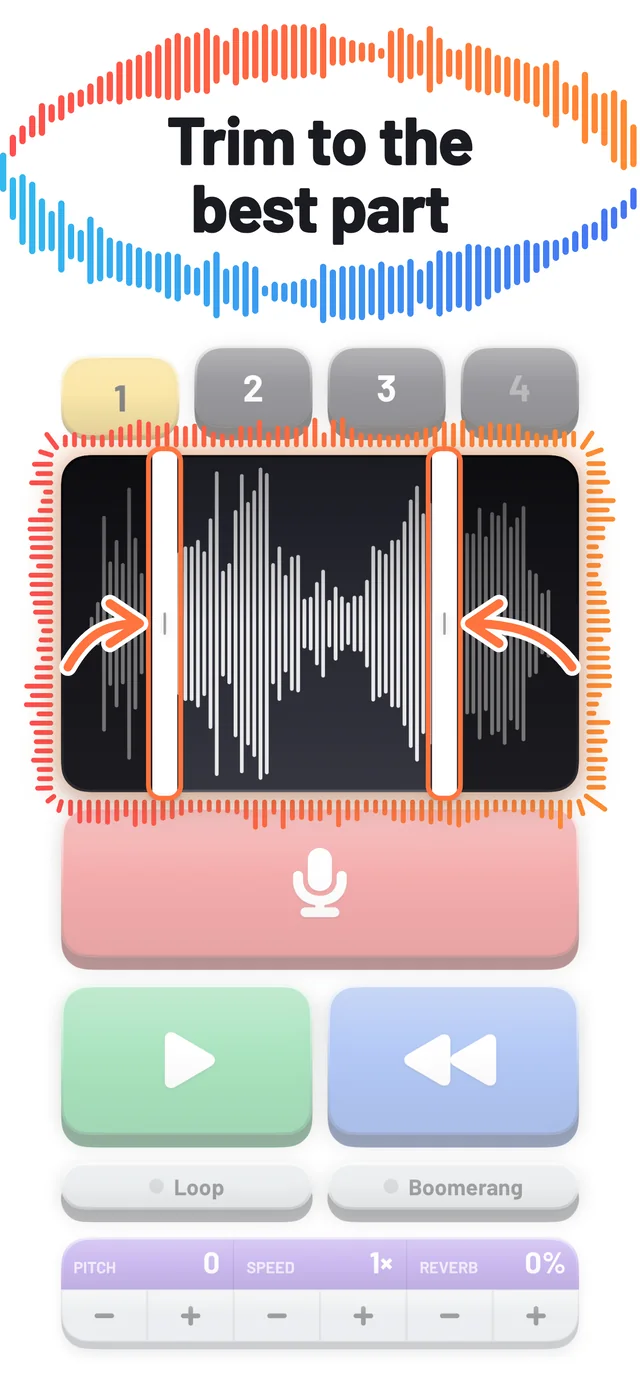
- Drag the two white handles on the waveform inward, or tap the waveform to move the nearest handle to that spot.
- Press Play. Only the section between the handles is played. Handles can be moved at any time, so adjust until the loop starts and ends on exactly the right moment.
Cutting off silence at the start matters for loops: a loop with a gap at the front will have a gap every time around.
How to loop it
Tap Loop above the effects panel, then play. The trimmed section repeats until you stop it. Boomerang does something different: it plays forwards, then backwards, then forwards again, like a ping-pong. Boomerang is great for creating a rhythmic, hypnotic effect from a tiny sound.
Use cases
Learning a language
Record a native speaker, a voice message or yourself, then loop one sentence at 0.75×. Repeating a short phrase until your mouth catches up is called shadowing, and it is a popular way to improve pronunciation. Slowing the audio makes the individual sounds easier to hear, with no chipmunk effect.
Practising an instrument
Capture a short lick or riff, trim it to one bar, loop it at half speed, and bring the speed up in steps of 0.25× as you get better. This is the same method many musicians use with practice apps, and it fits in a pocket.
Transcribing speech or lyrics
If you are writing down lyrics, notes from a meeting, or an interview, loop the difficult words at a slower speed until you can make them out.
Making glitchy and rhythmic sounds
Trim a very short region of a few hundredths of a second, and loop it. A syllable turns into a stutter, and a laugh into a buzzing robot. Combine it with Boomerang and a lower pitch, and you have an instant sound effect.
Checking your reverse attempts
In the reverse talking challenge, slowing your backwards imitation to 0.75× helps you hear which sound you missed.
Importing your own audio
SingFun records with the microphone for free. With SingFun Premium (a one-time purchase on iPhone and iPad) you can also import an audio file of up to five minutes, such as a voice memo or a file you own, and then trim, loop, slow down or reverse it like any recording. A longer file only needs to be trimmed to the section you want to work on.
Quick settings cheat sheet
| Goal | Trim | Loop | Speed |
|---|---|---|---|
| Learn a phrase | One sentence | On | 0.75× |
| Hear a fast lick | One bar | On | 0.5× |
| Stutter effect | A syllable | On | 1× |
| Hypnotic ping-pong | Under a second | Boomerang | 1×, pitch −3 |
A note on saving
The Download option saves the trimmed region as a WAV, forwards or reversed. Loop, Boomerang, pitch, speed and reverb shape what you hear live, and they are not stored in the file. For more on how pitch and speed work together, see our guide to pitch vs speed.